Posts

Showing posts with the label Windows

Change indentation in Visual Studio Code (VS Code) |R

Image
Click on the right bottom Spaces option  It will show different spacing options available with visual studio code. Select "Indent using tabs" it will show the different spacing configuration for tab indent select one value and the file tab indent will be updated with the selected value https://stackoverflow.com/questions/34174207/how-to-change-indentation-in-visual-studio-code
Print Date and Time in windows command line without prompt

 Date To print the date in the windows command-line/console. date /T The /T parameter will omit the prompt for a new date. Example: C:\>date /T 21-06-2021 If the user wants to set a new date, use the following command  in command-line date Time To print the time in the windows command-line/console time /T The /T parameter will omit the prompt for a new time. Example C:\>time /T 17:36 if the user wants to set a new time, use the following command in command-line time 

Get Java Version and Architecture from windows command line

Version and architecture of  java can be identified with the help of windows command line. Java is available in windows 32bit (x86) and 64bit (x86_64) architecture. Following steps will show the version and architecture of java installed in a machine. Start windows command prompt with administrative rights. Make java path is set and java command accessible in command line. Scenario 1  Environment : 32 bit JRE installed in windows 10 64 bit machine Type following command java -d32 -version sample output j ava version "1.8.0_221" Java(TM) SE Runtime Environment (build 1.8.0_221-b11) Java HotSpot(TM) Client VM (build 25.221-b11, mixed mode) Type following command java -d64  -version sample output Error: This Java instance does not support a 64-bit JVM. Please install the desired version. Scenario 2  Environment : 64 bit JRE installed in windows 10 64 bit machine Type following command java -d32 -version sample output Error: This J...

Fixing TortoiseSVN icons overlay in Windows 10

Image
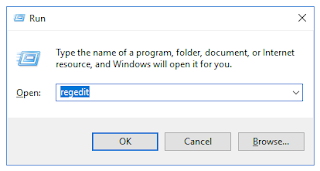
TortoiseSVN icons overlay (Shell icon overlay) may disappear after installing a software which uses same type of icon overlays like OneDrive, Dropbox. Editing the order of overlay icon entries in windows registry can fix the problem. These screen shorts are from a windows 10 desktop with OneDrive and Dropbox. Step 1. Start Registry editor using run window Step 2. Backup registry to disk. Step 3. Go to following location in registry HKEY_LOCAL_MACHINE\SOFTWARE\Microsoft\Windows\CurrentVersion\Explorer\ShellIconOverlayIdentifiers Step 4 . Rename entries Expanding ShellIconOverlayIdentifiers tree lists all overlay icon entries. Here tortoisesvn icon is displayed after other items (Dropbox). Rename tortoise overlay icon entries by adding more white spaces as a prefix. Items before editing In above example, names sorted in ascending order. Adding white spaces at the beginning of the text will change the order of the entries after a restart. Step 5. Restart and...

Authenticate IIS Web Application Using Application Pool Identity with MSSQL Server

Image
A web application can be connected with MS SQL with application pool identity. While Creating a new web site in IIS, Application pool identity will be the default credential for database connection if the application used windows authentication. These steps enable the application pool to authenticate with MS SQL for all database connections. Screen shots are from a Windows server 2016 Standard with SQL Server Express 14.0. Step 1.  Creating new application pool with desired name. Step 2. Create a website and select the application for the site. Step 3. Connect Sql Server with sql server management studio. Create a new database. Step 4.  Add new sql server user with Application pool name as user name for authentication. The mode of authentication should be Windows Authentication. Select the default database for the user. Step 5. Assign privileges to new user for the database. Step 5. Configure web.conf with windows authentication. Example: <add...